Form Fields
There are two types of fields that are visible on all forms.
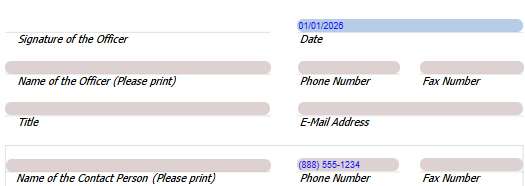
Blue: User input fields. These fields are completed manually by the user.
Pink: Calculation fields. These fields are automatically calculated by the software or populated using related form data, general information, or prior-year values.

By default, values displayed in calculation fields appear in blue text. If a calculated value is overridden, the text color changes to red to indicate that the field has been manually modified. To remove an override, select the value in the field and press the Delete key on your keyboard. Any overrides made on a form will also appear in the Actions Report.
Once a form is open, data can be entered directly into the blue user input fields. Calculation fields may already contain values based on information entered elsewhere in the return or values calculated automatically by the software.
In Stratus, form data is saved automatically as information is entered, so no manual save action is required.
Related Articles